
Running a Basic Script
Bash scripting allows users to automate tasks, execute commands in sequence, and simplify repetitive operations.
1. Create the Script File
First, create a script file using the vi editor.
vi script.sh
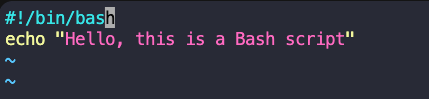
Press i to enter insert mode, then write a simple script.
To save and exit:
- Press Esc
- Type
:wq - Press Enter
2. Try to Run the Script
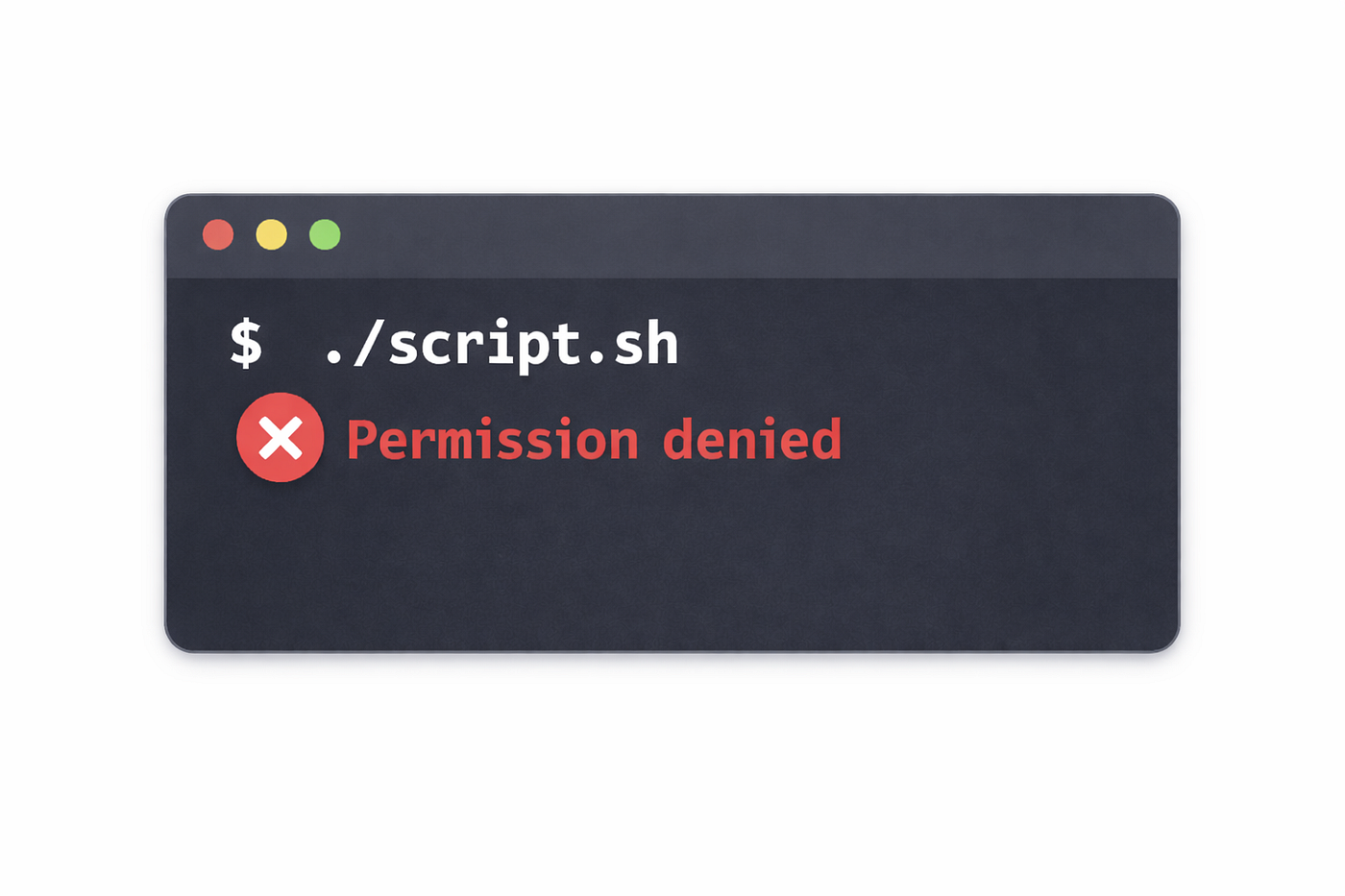
Now try to execute the script. You may see an error like this:

This happens because the script does not have execute permission.
3. Check File Permissions
Use the following command to see the file permissions:
ls -ltr
Output:

rw-→ owner can read and writer--→ group can readr--→ others can read
4. Add Execute Permission
To allow the script to run, add execute permission:
chmod +x script.sh
5. Verify the Permission Change
Run ls -ltr again:
ls -ltr
Now the output should look like:

Notice the x in the permissions:
-rwxr-xr-x
This means the script can now be executed.
6. Run the Script Again
Execute the script again:
./script.sh
Output:

The script now runs successfully.
Lesson Learned
From this exercise, we learn several important things about running Bash scripts.
1. A Script Must Have Execute Permission
Even if the script is written correctly, it cannot run without execute permission.
Linux requires the x permission for a file to be executed as a program.
chmod +x script.sh
2. What +x Means
The command:
chmod +x script.sh
is used to add execute permission to the file.
Explanation:
chmod→ command used to change file permissions+→ means add permissionx→ means execute permission
So:
+x
means add the execute permission to the file. This allows the system to run the script like a program.
3. File Permissions Can Be Checked
ls -ltr
This command shows whether a file has:
r→ readw→ writex→ execute
permissions.
4. The Shebang is Important
At the top of the script we used:
#!/bin/bash
This tells the system which interpreter should run the script.