
Containerized Python App
This lab shows how to containerize a simple Flask app with Docker and run it locally with Docker Compose.
I. Project Structure
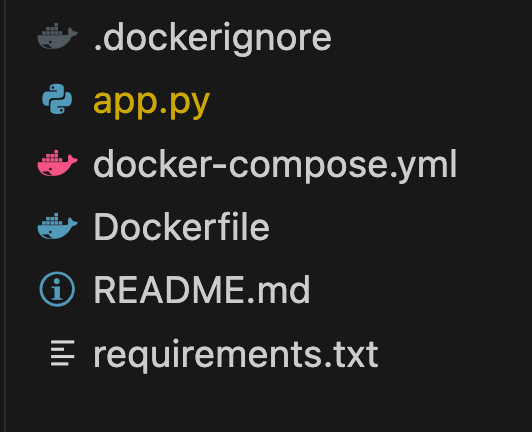
II. File Breakdown
app.py
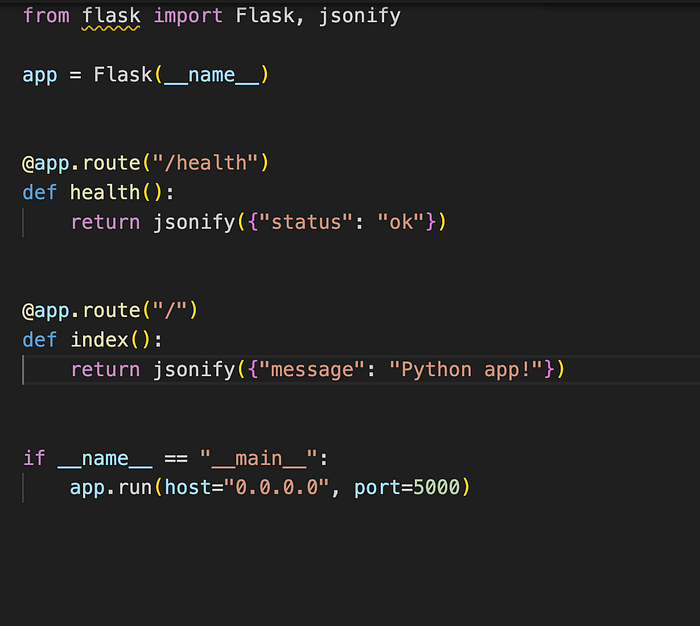
- This creates a Flask web server with two routes.
host="0.0.0.0"makes the server listen on all network interfaces inside the container, which is required for Docker to forward traffic into it.
requirements.txt
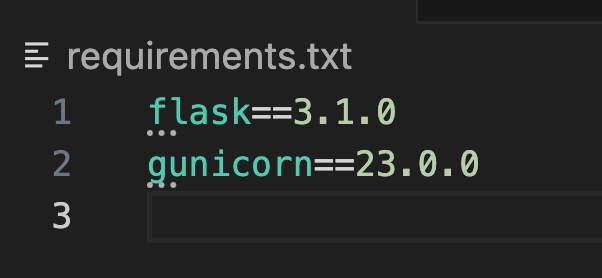
- Pins exact versions to ensure reproducible builds.
flaskis the web framework.gunicornis the production WSGI server used to run Flask inside the container.
Dockerfile

FROM python:3.12-slim- This is the starting point of the image.
- It downloads a lightweight Linux system that already has Python 3.12 installed.
slimmeans it only includes what is necessary, nothing extra.- Every Dockerfile has to start with a
FROMline.
WORKDIR /app- This creates a folder called
appinside the container and opens it. - Everything after this line happens inside that folder.
- Think of it like running
mkdir /app && cd /app.
COPY requirements.txt .- This takes
requirements.txtfrom your computer and puts it inside the container. - The
.means “put it in the current folder,” which is/app. - Only this one file is copied at this step, not the whole project.
RUN pip install --no-cache-dir -r requirements.txt- This installs all the Python packages listed in
requirements.txt. --no-cache-dirtells pip not to save downloaded files, which keeps the image smaller.- This is the step that puts Flask and Gunicorn into the container.
COPY app.py .- This copies your application code into the container.
- It happens after the install step on purpose.
- If you change
app.pylater and rebuild, Docker skips the install step and starts from here, which makes rebuilds faster.
EXPOSE 5000- This tells Docker that the app runs on port 5000.
- It does not actually open the port.
- It is more of a label so anyone reading the file knows which port to use.
CMD ["gunicorn", "--bind", "0.0.0.0:5000", "app:app"]- This is the command that runs when the container starts.
- It starts Gunicorn, which is the server that handles incoming requests.
0.0.0.0:5000means accept traffic from anywhere on port 5000.app:appmeans look inapp.pyfor a variable calledapp, which is the Flask application.
docker-compose.yml
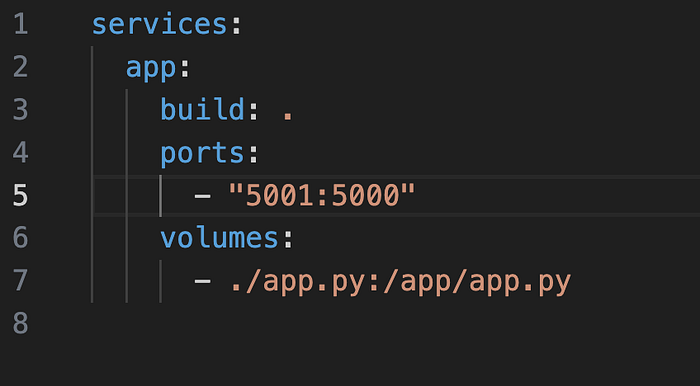
services:- This is where you list all the containers you want to run.
- Everything indented under it is a container definition.
app:- This is the name you are giving to the container.
- You can call it anything.
- Other containers in the same file can talk to this one using this name.
build: .- This tells Docker Compose to build the image using the
Dockerfilein the current folder. - The
.means “look in this same folder.”
ports:
- "5001:5000"- This connects a port on your computer to a port inside the container.
- The left number is the port on your machine.
- The right number is the port the app is using inside the container.
- Without this you cannot reach the app from your browser or terminal.
volumes:
- ./app.py:/app/app.py- This links a file on your computer to a file inside the container.
- The left side is the file on your machine.
- The right side is where that file lives inside the container.
- When you edit
app.pyon your computer the container sees the change right away. - You do not have to rebuild the image every time you make a change.
III. Running It Locally
Prerequisites: Docker Desktop installed on your machine.
1. Build the image and start the container.
docker compose up --build -d
Docker reads the Dockerfile, pulls python:3.12-slim from Docker Hub on first run, installs the dependencies, copies app.py into the image, and starts Gunicorn.
2. Verify the application is running.
http://localhost:5001/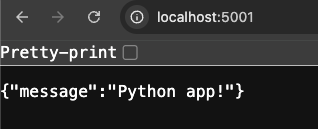
http://localhost:5001/health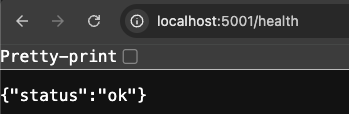
IV. Conclusion
This project showed how to containerize a Flask app with Docker and run it with Docker Compose. On the Docker side, the Dockerfile defines how the image is built. It starts from a base Python image, installs dependencies, copies the application code, and starts Gunicorn when the container runs. The order of instructions matters because Docker caches each step as a layer, which keeps rebuilds fast.